> ## Documentation Index
> Fetch the complete documentation index at: https://tomee-rohan-testing.mintlify.site/llms.txt
> Use this file to discover all available pages before exploring further.
# Manage workflows
> Trigger, disable, re-enable, and delete Mintlify workflows from your dashboard, and learn how schedules recalculate after you pause and resume a workflow.
## Disable a workflow
1. Go to the [Workflows](https://dashboard.mintlify.com/products/workflows?tab=workflows) page in your dashboard.
2. Click the toggle beside a workflow to disable it.
When you re-enable a scheduled workflow, Mintlify recalculates the next run time from the current time.
## Delete a custom workflow
Deleting a workflow is permanent and removes its configuration and run history.
1. Go to the [Workflows](https://dashboard.mintlify.com/products/workflows?tab=workflows) page in your dashboard.
2. Click the settings button beside a workflow.
3. Click **Delete**.
## View run history
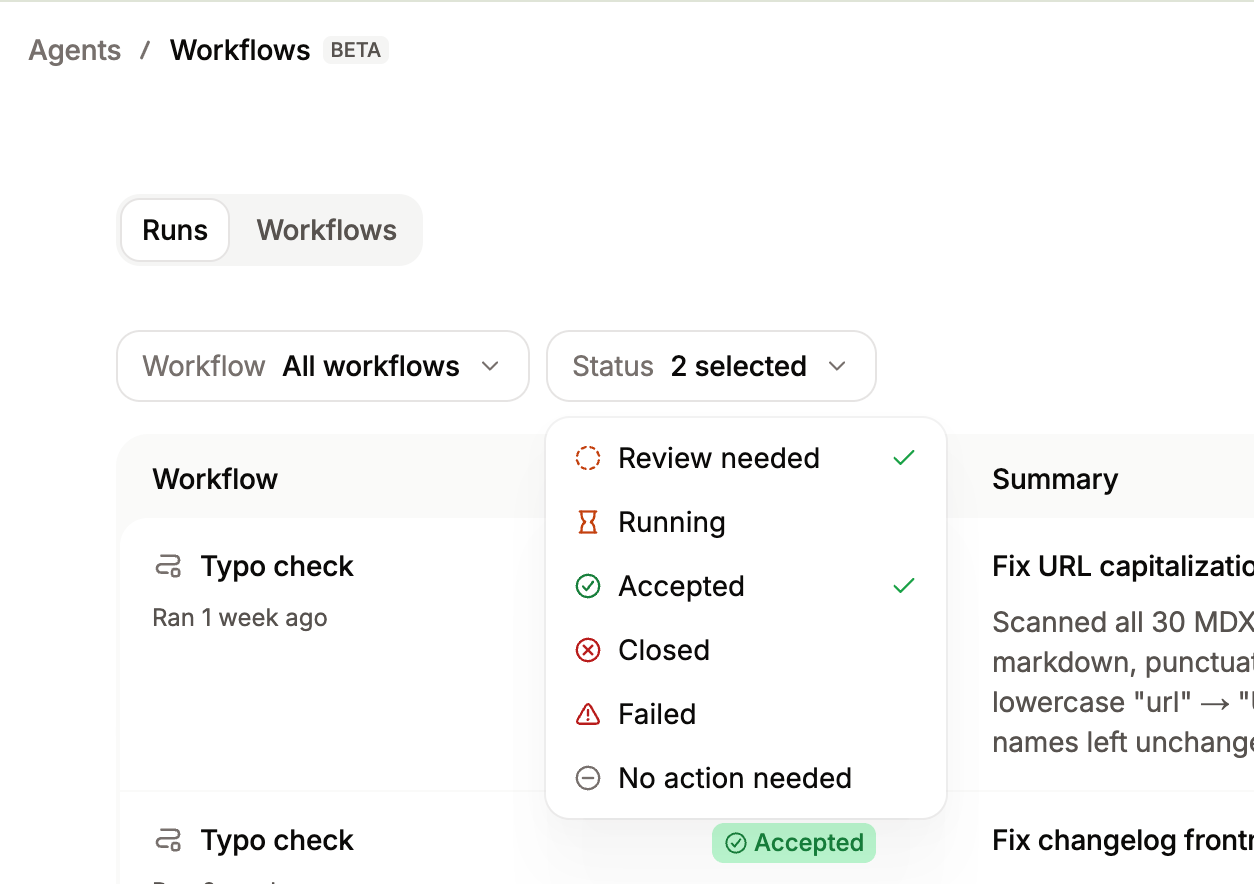
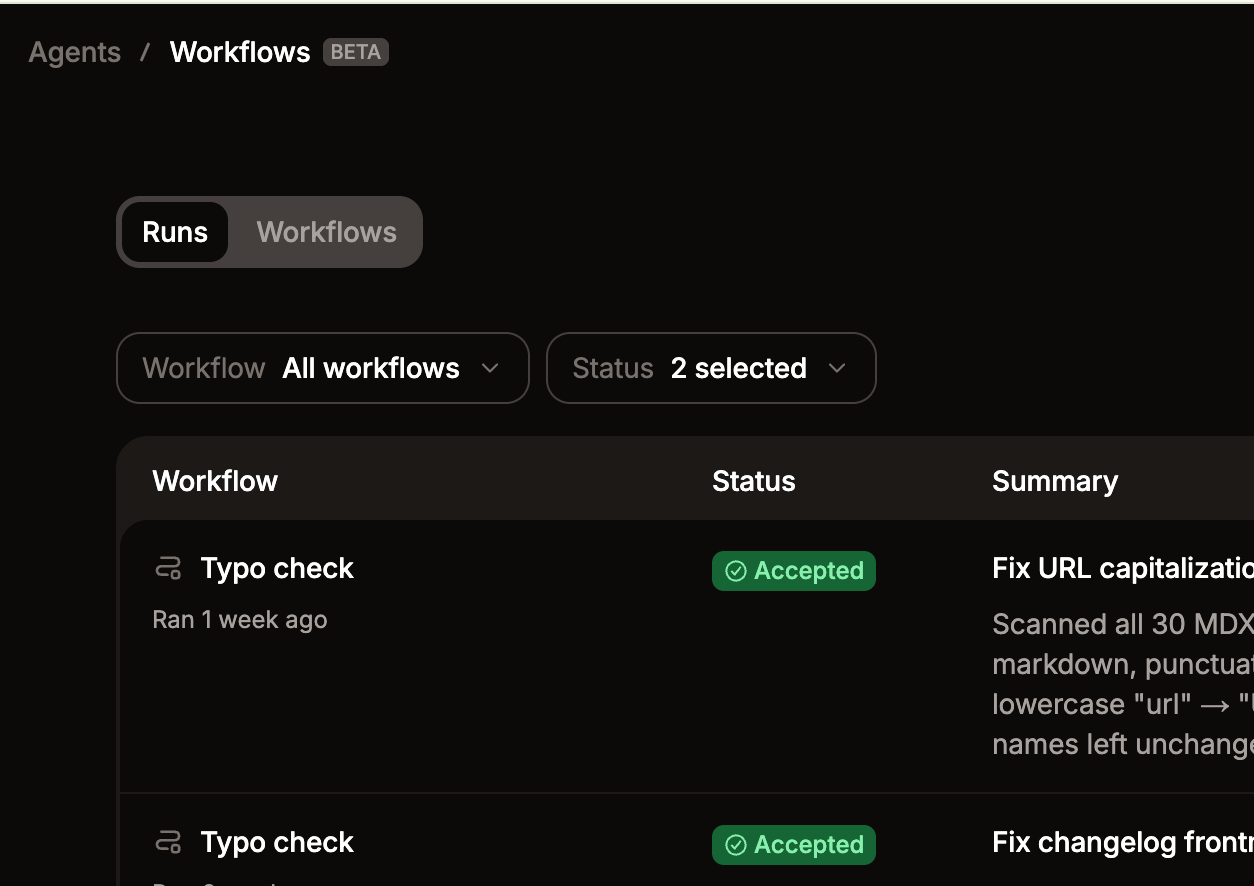
Each workflow keeps a log of past runs, including the status and a summary of changes made.
1. Go to the [Workflows](https://dashboard.mintlify.com/products/workflows) page in your dashboard.
2. Click a workflow.
3. Use the dropdown menus to filter by specific workflows or status.